List or claim your business, build a storefront, sell online, take orders, run your counter and dine-in with the FINDR POS, manage your rentals, teach your class, collect school fees, keep staff hours and your POS honest, and see exactly how you're doing, all from your phone or your computer at business.findrgh.com.
1List or claim your business
Open Profile → List your business on FINDR to reach the Owner Portal. You can add a brand-new business, or claim one that's already in our directory.
Create a new business
Tap Create Business.
Add your name, category, phone (and WhatsApp), then set your location by searching a place or dropping a map pin.
Upload a logo and cover pictures, write a short description, and tap Create Business.
Claim an existing listing
Found your business already on FINDR? Open it and tap Claim this business, then choose:
Phone code (instant): we text a code to the number on file; enter it and you're verified on the spot.
Upload proof (reviewed by our team): send a business certificate, utility bill or tax document (JPG/PNG/PDF). We review and approve it.
Your prices after you claim. Once you claim your business, the prices you list are your real prices, and customers pay a small FINDR service fee on top at checkout.
Restaurant already on FINDR delivery? If FINDR set up your menu before you claimed, the claim may ask you to contact FINDR support on WhatsApp, so your menu shows your real prices first.
Just claimed or created? We can set it up for you, free
Right after you claim or create your business, the app shows a short Set up your shop checklist: add your items, set your opening hours, and add a cover picture, each one tap away, with how-to videos if you want them. Prefer not to type anything in? WhatsApp a picture of your menu, price list or room list to FINDR Support, 059 484 1885, and our team stocks your shop for you, free, usually within 24 hours. Your shop stays yours: review and change anything, anytime. If your shop stays empty, we'll send a gentle reminder. See Get your shop live for exactly what to send.
Too busy? Let a FINDR agent run it for you
With the Agent managed service, a trained FINDR agent sets up your storefront and keeps it running: adding products, pictures, videos, opening hours and running promotions on your behalf. It costs from GH₵50 a month, paid securely inside the app by Mobile Money or card. Your agent never handles your money.
You stay in control: you accept the service in the app (when you claim, or later from your business overview) and can end it at any time.
Everything stays yours: products, pictures and settings the agent adds belong to your business, even if the service ends.
2Two ways to run your business
Run FINDR however suits you: on your phone or on your computer. Both work on the same data, live, and you can manage several businesses from one account.
On your phone: the Owner Portal
Inside the FINDR app: list or claim, edit your storefront, take orders, run dine-in, manage bookings, chat with customers, and see your “Grow your sales” tips on the go. When your best seller could sell even more, its tip has a Run an offer button that opens Offers & discounts (owners only, since only the owner can create offers). Tabs along the top: Overview, Listings, Shop, Bookings, Analytics & Revenue. Switch businesses with the picker.
Make the app open on your business
From the Work tab or the You tab, switch your profile from Customer to Business. FINDR becomes a work-only view, just Work, Activity and You, and from then on every launch opens straight on your business dashboard instead of the customer home. Your staff can do the same on their own accounts, and the choice is saved per account, so a shared phone never shows one person's business view to the next sign-in. Switch back to Customer the same way to get the full app again.
On your computer: the FINDR Business web app
Open business.findrgh.com and sign in with the same FINDR account (phone OTP or email). It's the full back-office, best for desk work, and the sidebar adapts to your business type:
Dashboard: today's sales, 30-day totals, a sales chart, recent orders, and your “Grow your sales” action list (smart, one-tap suggestions built from your own numbers).
Orders: every order with status, payment method and totals; issue refunds; export CSV.
Products / Rooms: manage your catalogue or rooms (owners and managers can edit).
Inventory: stock levels, low-stock alerts, valuation, suppliers, purchase orders and a movement history.
Reports: sales by day, payment method and product over any date range, with CSV export.
Accounting & Payroll: a real profit & loss and expense tracker, plus Ghana SSNIT + PAYE payslips.
Get seen on FINDR (sponsored spots): book a Sponsored spot from the menu, with the same spots and prices as the app. Product boost is there too (Promote a product). This is how iPhone owners buy ads.
Staff: add team members by phone and give each a role (manager, accountant, cashier, waiter…). Roles now work the business, not just clock in: your staff open and move along the bookings and orders queue in the app, each kept to what their role allows. Money movement stays with you: payouts, payout account details and business verification are owner-only. Review and approve timesheets here too.
Same account, same data. Everything syncs instantly between the app and the web. Use whichever screen is in front of you.
3Set up your storefront
From Listings, open a business and tap Edit to manage:
Name, phone & WhatsApp, and a short description.
Logo and a swipeable cover picture gallery (the first picture is your primary cover).
Address & map location so customers can find and reach you.
Tap Save when you're done.
Good pictures sell. A clear logo and bright cover pictures make your storefront stand out in search and on Home.
4Storefront video promo
Make your storefront pop with a short autoplay video that plays first in your header.
In Edit business, open Feature a video on your storefront.
Upload your video, choose Mobile Money or card, and pay the fee shown.
It runs for 30 days; renew any time from the same screen.
Your video only goes live once payment is confirmed.
Get seen on FINDR (sponsored spots)
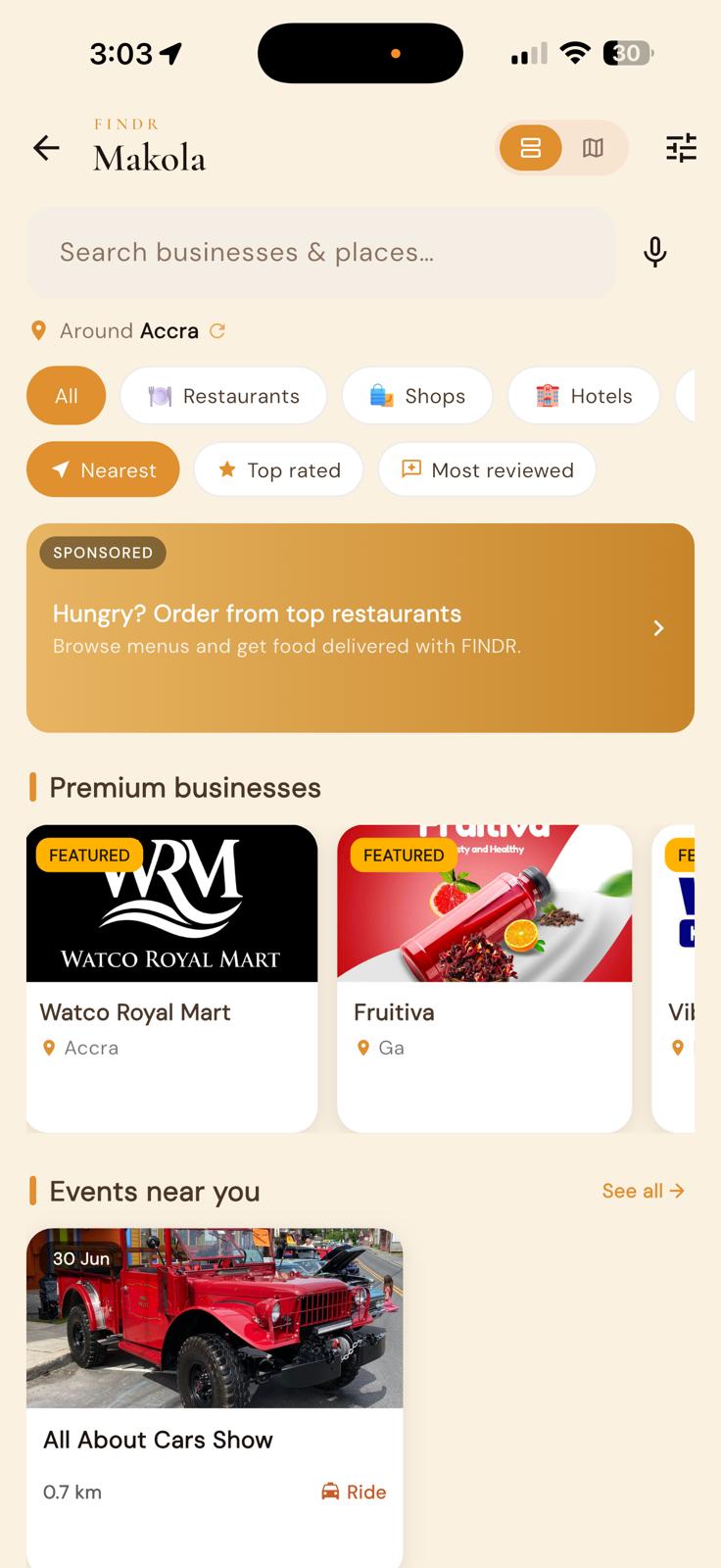
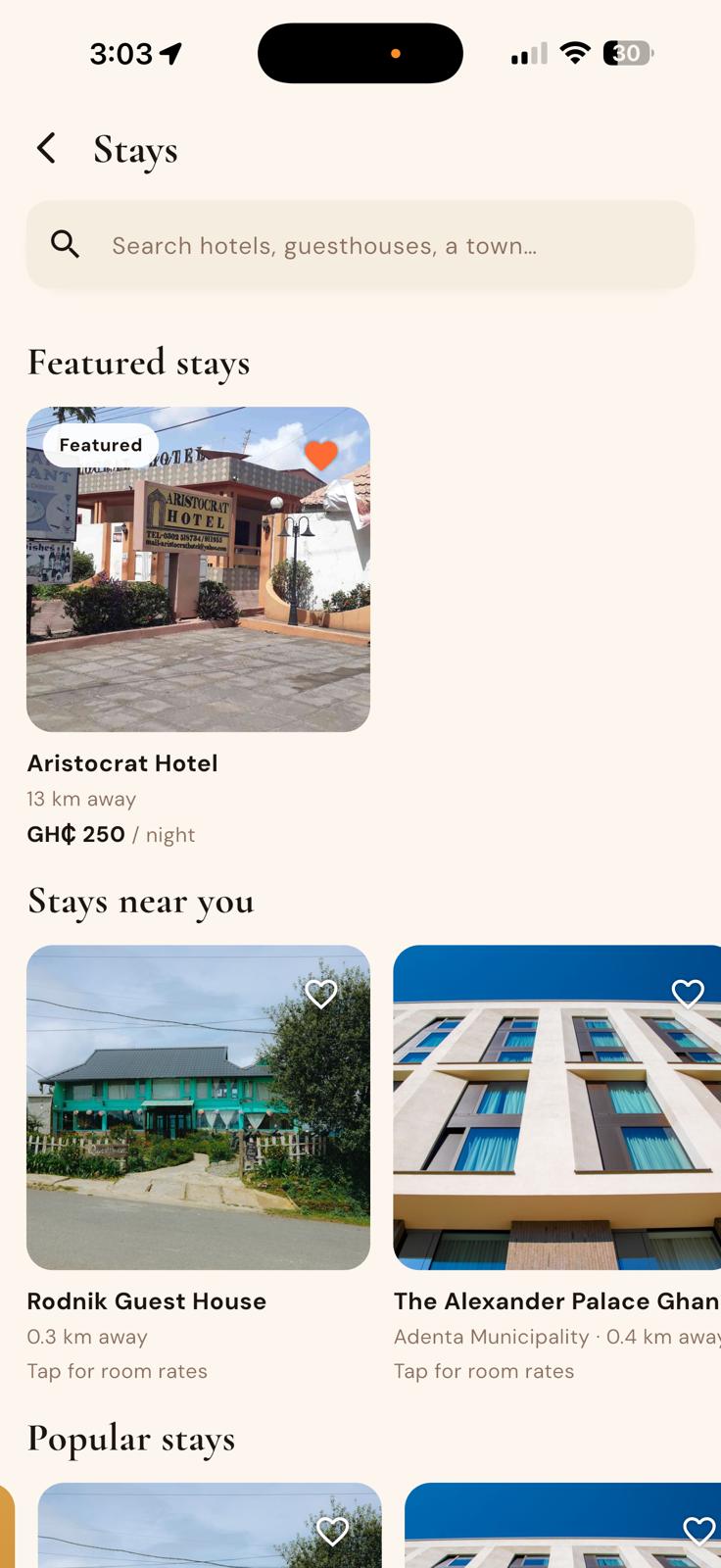
Pay to be seen at the top of Makola, Shops and Stays. Open it from your dashboard (Get seen on FINDR) or from your shop's More menu. These spots are always on screen: when nobody has bought one, FINDR fills it with popular shops and products, chosen by sales and ratings, and that is free. Keep good pictures and fair prices on your products and you can show up there without paying. A paid spot shows Sponsored with a gold border.
On your iPhone, or on your computer: you can also book Get seen on the FINDR Business web app. Sign in at business.findrgh.com/get-seen with the same FINDR account, pick where you show, pick what to show, choose who sees it, and pay with Mobile Money or card. It has the same spots and prices as the app. Your ad goes live as soon as the payment comes through.
Product boost is now on the web too: open business.findrgh.com/get-seen/boost (menu: Promote a product), pick the product and pay. Promoting it again adds more days.
If your business map pin is missing, the Get seen page shows Add my business location. Tap it, drop the pin on your shop on the map, save, then tap Back to Get seen. You can also set it any time on the web under Profile (the page is called Business profile) > Business location.
If a payment is stuck and says “A payment is waiting”, press Check payment. When it says the payment did not go through, press Start over and book again. Never pay twice: if the money left your phone, wait a few minutes and check again.
Pick where you show. The screen also shows last week's views, taps and orders from your ads.
Sponsored product tile: one of your products inside the product lists on Makola and Shops. GH₵ 40 for 14 days.
Spotlight quad: your shop takes a whole block with 4 of your products and a link to your shop. GH₵ 80 for 30 days. You need at least 4 products on sale to book it; with fewer, the spot shows Add at least 4 products to use a spotlight.
Hero carousel slide: the big rotating banner at the top of Makola and Shops. Up to 4 products, a short video or a countdown. GH₵ 100 for 30 days.
Featured stay (hotels and guest houses only): your rooms in the Featured stays row on Stays. GH₵ 60 for 30 days.
Stays top banner (hotels and guest houses only): the big rotating banner at the top of Stays, shown to people looking for a stay in and around your town. Up to 4 rooms, a short video or a countdown. GH₵ 100 for 30 days.
Product boost: your product at the top of your own shop. GH₵ 30 for 14 days.
Pick what to show: your products (or dishes), and a title.
Pick who sees it. Buyers in and around your town (10 km) see it. Add + Buyers abroad sending to your town (+50%) to also reach people abroad whose Deliver to town is yours.
Check the preview, then slide to pay (in the app) or tick to confirm and pay (on the web) with Mobile Money or card. Your ad goes live as soon as the payment comes through.
Always marked Sponsored. Every paid spot carries a "Sponsored" label and a gold ring. Your free place in search and nearby lists is earned by your ratings and orders and never changes because you bought an ad. At most one sponsored block appears in every three blocks on a screen. Prices are set by FINDR and always shown before you pay. Refunds for ads follow FINDR's normal refund policy.
5Sell online: products & menu
Open the Shop tab to manage what you sell. It is available to every business.
Add a product or menu item
Tap the + at the top of the Shop tab (Add item; restaurants see Add dish and hotels Add room).
Fill in the name, price, a menu section or category, and add pictures. For shops you can also set stock.
Short on time? Type the name first, then tap the ✨ sparkle (Write it for me) in the Description box to have FINDR AI draft one, or tap No picture? Find one under your pictures to add a suggested image.
Tap Save.
Set your real shop price. Your FINDR prices now match the prices you charge in your shop. For most businesses (everything except fuel stations, schools, wholesale suppliers and Makola market traders), that price is what customers see, and a small Service fee (about 7%) now shows on its own line at checkout instead of being built into the price. On orders and bookings paid in the app, your take-home doesn't change: you still receive the full price you set, and the fee has simply moved from inside your price to a clear line the customer sees. Dine-in sales you take yourself (cash or card terminal) are at your shop price. Cash orders carry the fee too: FINDR collects it as a small in-app charge, and the customer still pays you in cash for the goods. For a hotel room, you receive your full nightly rate; a booking taken at your front desk and paid cash at the hotel carries no service fee.
⚡ Add stock fast with FINDR AI (retail shops)
Let your camera do the typing: FINDR AI drafts, you confirm.
Scan to list: in the add form, tap Scan with FINDR AI, snap the product (or pick a picture), and FINDR AI fills the name, brand, category, description and specs and attaches the picture. You just check it and set the price.
Scan a whole shelf: tap Scan products with FINDR AI at the top of the product manager (or “Have several? Scan multiple at once” in the add form), take one picture of several items, then tick what to keep, set prices, and add them all at once.
FINDR AI stock count: on a product's ⋮ menu → Count stock with FINDR AI, snap the stock and FINDR AI estimates the quantity; review the number and save. It's an estimate you confirm, so it works best with a clear, close picture of one product.
Import your menu with FINDR AI (restaurants)
In Shop manager, tap the ⋮ menu, then Import menu from a picture. Only the owner or a manager sees this option. Snap your printed menu or pick a picture of it, and FINDR AI types up each dish with its price, up to 200 dishes. Take the picture straight on, in good light, with the whole menu in view. Dishes that come in sizes keep them, for example S, M and L, each with its own price. If you see Some dishes may be missing, compare the list with your menu and add any missing dishes by hand. Always check every price before saving: FINDR AI can misread small print. You choose what to keep before anything is added. A dish with no price is saved hidden and marked Needs a price until you add one, so customers never see an item at GH₵ 0.
Day-to-day
Use the tune icon to add options/add-ons (e.g. “extra meat +₵2”).
Flip the Sold out today switch when something runs out; it clears automatically at midnight.
Track inventory (shops): turn on Track inventory on a product and enter how many you have in Stock qty. Each sale takes one off. Customers can never order more than you have: when the count reaches 0 the item shows Sold out to customers and Out of stock in your product list, and when only a few are left customers see Only 2 left. To sell it again, edit the product and enter the new count (or run a stock count). A cancelled order puts its items back. Turn tracking off for items you don't count; they never sell out on their own.
See your price history
Every time a price on one of your items changes, FINDR keeps a record. In the app, go to Work → Open business dashboard → Business portal, open Store (Restaurant for food, Hotel for stays), go to the Products tab (Menu or Rooms), tap the item, and tap Price history under the price. On your computer, open business.findrgh.com, go to Products (for stays, pick Rooms or Room service menu), click Edit on the item, then Price history under the price.
Each line shows the old price, the new price, when it changed, and who changed it: Owner edit (a direct change by the owner or a manager; on the web it shows with the person's name, and in the app your own changes show as You), Desk (the FINDR Makola desk), or FINDR (an automatic change made by the FINDR system, not by a person). Newest changes are at the top. In the app, tap Show more for older ones; on the web, use Newer and Older (10 a page). The history cannot be edited or deleted.
🏷️ Run a discount or offer (owner only)
Give your customers a real, enforced discount. Only the business owner can create offers, and FINDR works the discount out on its servers, so the discount your storefront banner promises is exactly what checkout takes off. What customers see is what they're charged, with no more banners that advertise a deal checkout never applies.
Open it from Offers & discounts on your Overview tab, or tap Run an offer on your best-seller tip in “Grow your sales”.
Shop-wide offer: put a discount across your whole storefront; it shows as a banner on your business page for everyone who visits.
Promo code: create a code customers type at checkout to unlock the discount.
Voucher: send a discount to one specific customer by phone number; it's tied to their number, so only they can use it.
6Import your price list
Update all your prices and add new items from one Excel or CSV file, then check everything before it happens. If your shop keeps its prices in a spreadsheet, you do not have to type them in one by one. Upload the file, see exactly what would change, fix anything you do not like, and apply it. You get a report, and you can undo it.
Who can use it. The owner and managers of a retail shop (shops that sell things, such as appliances, fashion, groceries and electronics). It is on the FINDR Business web app at business.findrgh.com, on your computer or in your phone's browser. Cashiers, waiters and accountants do not see it. Restaurants, hotels, schools, fuel stations and market traders do not have it. If you do not see the button, your shop type is not covered or you are not signed in as the owner or a manager.
What a good file looks like
One table, with headings in the first row, and one item on each line. Four columns is ideal:
Brand
Category
Item
Price
Nasco
Fridges
Nasco 150L Chest Freezer
2,400
Samsung
Televisions
Samsung 43 inch Smart TV
3,850
Hisense
Washing machines
Hisense 7kg Top Load
3,100
Fans
Standing Fan 18 inch
450
Price is the price you sell at, in cedis. It is not your buying price. If you also have a cost column, FINDR will not use it as the price.
Brand and Category are optional. Fill them if you can: they help FINDR tell items apart and put new items in the right group.
Prices like 1,250, 1250 or GH₵ 1250 all work. If a price has pesewas, FINDR rounds it up to the next whole cedi (GH₵ 145.50 becomes GH₵ 146), because FINDR shows whole cedis only.
Excel (.xlsx) or CSV files, up to 5 MB. Very long lists may need to be split into two files and imported one after the other. Old .xls files must be saved again as .xlsx first. Tap Download an example on the first screen to see a sample file.
If your file has several sheets, you can choose which sheet to use, or use all of them.
Your file is read in your own browser first. Nothing changes on your shop until you press Apply changes.
Import your list, step by step
Open Products on business.findrgh.com and tap Import prices and items.
Choose your price list. Pick your Excel or CSV file.
Check the columns. FINDR guesses which column is the brand, category, item name and price, and shows your first lines. If a guess is wrong, change it in the box. Lines with no price, a word instead of a number, a zero price or no name are listed and left out. FINDR never guesses a price.
Checking your list. FINDR compares your list with your shop. A bar shows how far it has got. For a long list this can take a little while. Your shop is not touched. You can leave the page: the list waits under Past imports as Still checking, and you tap Carry on to continue.
Check what will change. You see a summary line such as “24 prices change, 207 new items, 9 to check, 523 not on your list”, and tabs:
Prices that will change: the old price, the new price and the difference. You can change the new price on a line, or tap Don't change this one.
New items: things on your list that are not on your shop yet. You can change the name, brand, category or price of any line, or leave a line out.
To check: lines FINDR is not sure about, with a question in words. Pick Same item as ..., A different item, add it, or Skip this line. It is always safe to skip a line and fix that one item later in Products.
On your shop, not on the list: items you have on FINDR that are not on this file. For information only. The import never changes or removes them.
Already the same: items whose price already matches. Nothing to do.
Pictures for new items (if there are new items). Choose Make pictures for my new items and FINDR makes a picture for each new item, or choose I will add my own pictures later and the items go on your shop without a picture. FINDR’s pictures are illustrations of the kind of item, not a picture of your exact one, and customers see a small note saying so (see “About FINDR’s pictures” below). The step shows how many pictures you have left this month and how many this import needs. If you have enough, tap Next: apply. If you do not have enough for every item, choose Use what I have: the first items get a picture made and the rest wait for your own pictures. After you apply, a card shows how far FINDR has got, for example “62 of 141 pictures ready”. You can close the page and FINDR keeps going.
Apply changes. One big button. A bar shows how far it has got. You can close the page: come back to Past imports and tap Finish it if it stopped part way.
Your report. It lists every price updated, every item added, every line skipped and why, your questions and what you chose, and what is not on your list. Tap Download Excel to keep a copy.
What the colours and labels mean
The orange tab or button is the one you are on, or the next thing to press.
An amber label, such as Big price change, May be an item you already have or Price includes our fees, means FINDR wants you to look at this line before it goes ahead.
Price includes our fees appears on shops that type their prices as the amount they want to receive. The price customers pay is then your price plus FINDR's fees, rounded up to the next whole cedi.
A green Applied label means the import is done. Not applied yet means you can still change or throw it away. Still checking means FINDR had not finished comparing your list.
A red-edged Undo button takes changes back (see below).
Big price changes
FINDR stops and asks when a new price is more than 25 percent away from the old one, or more than GH₵ 1,000 away, or looks like a typing slip (for example an extra zero). These lines are shown large, old price and new price side by side, with a button Yes, this price is right. You must tap it on each one (or leave the line out) before Apply changes will work. If you change the price on that line, you confirm it again.
If more than 4 in every 10 of your matching prices would change, FINDR also warns that this may be a different price list, for example a cost list. Tick the box to say it is the right list.
If a price changed while you were looking
If you or someone on your team edits an item's price in the app after you open the preview, the import does not overwrite that new price. The line is shown in your report as left as it was, and everything else is still applied. If the list price is the right one, change that item yourself in Products.
Undo
On your report, tap Undo this whole import to take the whole import back, or Undo this price or Undo this item on one line.
A price goes back to the old price, but only if the item is still at the price the import set. If you changed it yourself afterwards, FINDR leaves your price alone and says so.
A new item is removed, but only if nobody has used it (no order, favourite, review or stock record) and you have not edited it. If it has been used or edited, it is hidden instead of removed, and the report says “hidden instead of removed”. Hidden items are not shown to customers. You can delete or show them yourself in Products.
Nothing that was already on your shop is ever removed by an import.
Undo cannot be undone. To bring the changes back, import the list again.
About FINDR’s pictures
What they are. FINDR makes an illustration of the kind of item, for example a fridge or a kettle. It is not a picture of your exact item. Customers see a small note on the item saying so.
What you get for free. Every shop gets 100 free pictures every month, and 300 more once as a welcome. The monthly ones start again next month and do not carry over. The welcome ones do not run out with the month. FINDR makes at most 1,500 pictures for one shop in a month.
Your own picture is always free. Add your own picture to any item from Products at any time. It replaces FINDR’s picture, and you can do this as often as you like.
The progress card. After you apply, the card shows a bar and a line such as “62 of 141 pictures ready”. It goes on working if you close the page. To see how it is going, open Past imports and choose this import. Each new item in your report has a label: Illustration (done), Being made, Waiting to start, You will add your own, No picture, Could not be made, try later, No picture made, add your own or Waiting for more pictures.
If a picture could not be made. Tap Try again on the card, or add your own picture to that item.
If you use up your free pictures. Items that did not get a picture are marked Waiting for more pictures. They still sell, just without a picture. Add your own pictures from Products, or tap Make the rest now on the card once your pictures start again next month.
Fix things afterwards
To add or change a picture, tap Add your own picture on the item's line in the report, or open the item in Products. Your own pictures are free, and an item you left without a picture still sells.
To change any other detail of an item, tap Edit this item on its line in the report. It opens the normal item editor.
Past imports keeps every report, so you can open an old one, carry on with one that was not applied, finish one that stopped part way, or throw away one you never applied (Throw it away).
Good to know. For items already on your shop, import changes the price only. It does not change stock counts, options or any other detail. Items that FINDR manages for you, such as Makola market items and wholesale-listed items, are never changed by it.
Stuck, or something looks wrong? Do not repeat the import. Email support@findrgh.com with your shop name and what you saw. Your report and Undo are always there.
Saw "We stopped this import"? If it says your prices would have gone up, do not try again: message FINDR support on WhatsApp with your shop name, and we will fix it for your shop so you can import again.
7Take & fulfil orders
Every order, from the app, your tables and your counter, lands on one Orders screen. Owners, managers, cashiers, waiters and the kitchen all open the same screen, and every order takes just three taps.
Where to find it
Open the Work tab and tap the orange Orders pill at the top. It shows how many orders are live right now. Owners can also open it from the dashboard's Open order queue button.
Orders sit in four tabs: New · Cooking · Ready · Done. Retail shops see Packing instead of Cooking.
Each card shows the order type (Delivery, Pickup or Table), how long it has been waiting, the customer's first name with a call button, a big payment badge (Paid in green, or Cash · collect GH₵ N in amber), the items, any note, and one big button for the next step.
The three taps
Accept. When a new order arrives your phone rings and the order fills the screen. Tap Accept and the order moves to Cooking straight away. For a delivery order FINDR starts finding a rider at the same moment, so the rider is on the way while you cook.
Ready. When the food is packed, tap Ready. A pickup customer is told their order is ready to collect.
Handed to rider (or Picked up, or Served for a table). The order moves to Done and the customer sees it on their phone.
Good to know
Online orders show up once the customer has paid. An order paid by Mobile Money or card only rings when the money has landed. Until then it waits quietly in a grey Waiting for payment strip at the bottom of the New tab, so you never cook for a payment that never came.
Your payout for a pickup order. For pickup orders, your payout is created when you accept the order. FINDR keeps the money safe until you tap Accept, so if the customer cancels before then, nothing is ever taken back from you. After you accept, your payout goes out as usual, normally within a few minutes of the customer collecting the order. Delivery orders are still paid once they are delivered.
Riders and the pickup code. A delivery card tells you where the rider is: Finding a rider, then Kwame is on the way, then the pickup code. Read the code to the rider at the counter before you hand over the order. If no rider was found, tap Need a rider? on the card to call one.
Cash orders. When you hand a cash order to the rider, FINDR asks you to slide to confirm the amount the rider will collect, so everyone knows who holds the cash.
Mobile Money, card and wallet orders. You can accept a Mobile Money, card or wallet order once the customer's payment has gone through, and FINDR then books the rider as usual. A rider never collects cash on an order the customer paid in the app. On a cash order, the rider collects the order total less any FINDR credit the customer used. A Mobile Money, card or wallet order that has not been paid cannot be marked completed. If the customer paid you in cash instead, contact FINDR support. From the next FINDR app update, the Need a rider? sheet shows "Waiting for the customer's payment before booking a rider." while a payment is still going through, and the cash handoff slide only appears when there is cash to collect.
Can't do this order? Tap Can't do this order on the ring screen, pick a reason (out of stock, closing, too far, other) and the customer is told at once. It works on paid orders too: the order is cancelled and the customer is refunded automatically through FINDR's refund process, so no money ever moves at the shop (refunds above GH₵ 100 are reviewed by FINDR first). Your shop cannot decline this refund; FINDR handles it. The order card shows Refund on its way until the refund is issued, then Refunded, or Refund declined if FINDR declines it. Staff who cannot see refund requests (a FINDR agent managing your shop, or an assisting worker) see Refunded from the start, even before the refund is issued. Once a rider has picked the order up it can no longer be declined; the customer asks for a refund instead.
A payment after a cancel. Now and then a customer's Mobile Money or card payment goes through after their order was cancelled. FINDR holds that payment and refunds the customer for you. It does not count as a sale and is not added to your FINDR earnings. If your shop is paid through Paystack directly, Paystack may still send you your share; FINDR takes it back, usually from your next payout, when the customer is refunded. You will see it under Refund requests (the ⋮ menu in Shop manager) with the note FINDR is handling this refund. There is nothing for you to approve or decline.
A customer cancels a paid order before you accept it. From FINDR 1.2.57, a customer can cancel a paid delivery or pickup order while it is still waiting for you to accept it. You get Order cancelled by the customer, the order leaves your queue, and FINDR refunds the customer in full. There is nothing for you to do, and it does not count against you. If you tap Accept at the same moment, whichever happens first wins: if the customer was first, the app says "The customer cancelled this order before it was accepted." Once you have accepted an order, the customer can no longer cancel it this way.
Paid orders nobody accepts. If a paid order waits about 24 hours without being accepted, FINDR cancels it and usually refunds the customer in full automatically. Now and then FINDR's refund team checks it first. There is nothing for you to do. The payment is taken back out of your FINDR balance, so it never counts as a sale. Please accept or decline paid orders promptly so customers are not left waiting.
A customer asks for a refund. FINDR's refund team reviews every request. Please don't decline a request yourself; tell FINDR what happened. For a problem after delivery or collection (a wrong, missing or damaged item, or a quality problem), FINDR may ask you first. You and your staff get a notice Question from FINDR about an order. Tap it, or open the request under Refund requests (the ⋮ menu in Shop manager, or Orders → Refund requests on the web), and tap Answer FINDR. A short line is enough, for example what was packed or when the rider collected it. Please answer within 2 hours; after that FINDR goes ahead with what it has, and it may decide sooner. You can also tell FINDR what happened on any open request without being asked. Customers should ask within 24 hours of delivery or collection and describe the problem. From FINDR 1.2.57, a customer cannot send a wrong, missing or damaged item request without a picture of what arrived. A later request still reaches FINDR's refunds desk, which usually declines it unless something clearly went wrong. FINDR usually refunds only the items with the problem, and the delivery fee is refunded when the delivery itself went wrong. If you approve a request yourself (Refund requests, the ⋮ menu in Shop manager), or refund an order with Refund…, type a short reason of at least 10 characters, for example "wrong item packed, customer sent a picture". The button stays locked until you do, and "Refund" on its own is not a reason. FINDR keeps a record of every approval and decline, and why. If FINDR's refunds desk has already started approving a request, you will see "FINDR's refunds desk is finishing this request." instead of the buttons: there is nothing for you to do on that one. When FINDR approves a partial refund, it comes out of your earnings as explained in the next point.
Partial refunds come out of your earnings. When you give a customer part of their money back (Refund… with a smaller amount than the order total), or FINDR approves a partial refund on a customer's request, your FINDR earnings drop by the amount refunded, whatever the reason for the refund. You see it straight away in Earnings & payouts. It never takes back more than your share of that order, which is what the order earns you: when a FINDR rider delivered it, the delivery fee belongs to the rider and any FINDR service fee belongs to FINDR, so neither is ever taken from you; when your own staff delivered it, the delivery fee is part of your share. If a refund is bigger than your share, FINDR pays the rest. If you were already paid for the order, it comes out of your next earnings first. Two or more partial refunds on one order each come out of your earnings, and together they never take back more than your share. A full refund takes back that order's earnings, as before.
Refunds on cash orders. If FINDR approves a refund on an order the customer paid in cash (cash on delivery or cash at pickup), your shop holds that money, so you give the cash back to the customer yourself. FINDR does not send it. FINDR's refunds desk checks with you that the customer got it back. Anything the customer paid in the app on that order is handled by FINDR as usual.
Cash on delivery with a FINDR rider. The order shows Paid once the rider's cash is settled with FINDR. Until then it shows as a cash order to collect. Cash orders your own staff deliver, and cash at pickup, work as before. If the customer reports a problem on a settled cash order, you give the cash part back and FINDR's refunds desk confirms it. FINDR returns its own service fee and any FINDR credit the customer used.
Order details. Tap any card to see the address, map, totals, rider tools, refund and reject options.
Orders sent to someone else. A customer can now order from your shop or restaurant for someone else, for example family in another town (coming with the next FINDR update). The name, phone and address on the order are then the person receiving it, and the order note says who placed it (Ordered by ...). Call and deliver to the person on the order as usual. Refunds always go back to the customer who paid, never to the person receiving the order.
Pickup is on by default: every shop offers pickup, so at checkout customers can choose Delivery or Pickup and collect the order themselves: no courier, no delivery fee. Pickup orders show on your Orders screen with a Pickup label; tap Ready when it is packed and the customer is told to come for it.
Turn pickup off: in Shop manager, tap the ⋮ menu, then Selling settings, and switch Offer pickup off. Customers then see delivery only. Switch it back on at any time.
Add a pickup note: in the same place, tap Pickup note under the switch and type what a customer needs to know, for example which counter to collect from or your pickup hours. Customers who choose Pickup see it at checkout under your shop name and address. Save an empty note to remove it.
On a computer: in the business back-office at business.findrgh.com, open Business in the menu. The Pickup card has the same Offer pickup switch and a Pickup note box (shown while pickup is on; up to 200 characters; save an empty note to remove it). Only the owner or a manager can change them.
Pickup is not offered on table (dine-in) orders or on hotel room service, and hotels and guest houses do not show the switch.
Event credit: when FINDR runs an event credit campaign and a customer uses event credit at your shop, your payout is not reduced by the event credit (FINDR covers it); your usual payout rules still apply (on a sale where the customer paid FINDR's service fee, you still get your full price). You and your staff cannot claim or use event credit yourselves.
FINDR Points (customers): customers earn FINDR Points when they pay for your orders by Mobile Money, card or FINDR Wallet. FINDR pays for those points, so they cost your business nothing. When a customer spends points at checkout, it works like FINDR credit: you are paid the full order value, and your payout is unchanged. You and your staff do not earn points when you buy from your own business.
Kitchen mode. Tap the moon icon to turn the same screen dark with bigger type and no money or customer details, perfect for a tablet on the kitchen wall. The lock icon pins the tablet to the screen and the bell icon picks the alert sound.
Receipt printer. On the POS, tap the printer icon on the cash-drawer bar to add a Bluetooth or Wi-Fi receipt printer. For a Bluetooth printer (Android phones), allow Nearby devices when FINDR asks. If no printer shows, the screen tells you why: Nearby devices not allowed, Bluetooth off, or no paired printer found. Fix it and tap Rescan.
Staff use the same screen. Add cashiers, waiters and kitchen staff by phone number (see Dine-in & table ordering) and they see the same Orders screen with the same three taps. Refund… appears only for the owner or a manager.
Counter sales at the till (retail POS)
These changes arrive with the next FINDR update. Receipts by SMS and WhatsApp are already live.
A sale is only Paid when the money is in. When a cashier rings a sale, it waits as Awaiting payment until it is paid in full. Cash, the card terminal and a confirmed MoMo payment all mark it Paid. If the MoMo wait is cancelled or the settle screen is closed, the sale stays unpaid; it never shows as completed, it is not counted in your sales or payout, and it cannot be refunded.
Unpaid sales. On the New tab of Orders, the Unpaid sales strip lists every sale rung but not paid, with the amount due. Tap Collect to take the payment, or Cancel sale to close it (manager PIN if your business set one). Cancelling puts the items back in stock. A part-paid sale shows Part paid and what is still due; to drop it, tap Refund the paid part, then cancel. An unpaid sale left untouched for 3 days is cancelled for you.
Customer name and phone. On the POS, tap New sale with customer name or phone to put the customer on the sale. The phone prints on the receipt and is used for a MoMo prompt or a refund. Leave it empty for a quick walk-in sale.
Send a receipt by SMS. The screen after a fully paid sale (in the app and in the FINDR Business web app) shows Send a receipt to the customer's phone? Always ask the customer first. The phone fills in from the sale or from the MoMo number that paid, and you can change it. Tick the Yes, ... box (it reads Yes, send to ... when WhatsApp is offered too, or Yes, SMS to ... when only SMS is) only if the customer said yes (it is never ticked for you), then tap Send by SMS. The customer gets a text with a link to a receipt for this sale only; FINDR does not use the number for adverts, and the customer can stop receipt messages with the link in the text. A sale can get at most two receipt texts, both to the same number. If the customer stopped receipts, or the day's receipt limit is reached, the screen tells you and nothing is sent.
Send a receipt on WhatsApp. In the FINDR Business web app (and in the phone app after the next update), the same card also shows Send on WhatsApp next to Send by SMS. Ask the customer which one they want, tick the same box, then tap their choice. The customer gets a WhatsApp message from the FINDR Support number with a View receipt button and a Stop receipts button. If the screen says This number is not on WhatsApp. Try SMS., nothing was sent: ask the customer if SMS is OK, tick the box again and tap Send by SMS. The limit of two receipts per sale counts SMS and WhatsApp together.
Not on WhatsApp after all. A few seconds after it says Receipt sent on WhatsApp, the card may switch to This number is not on WhatsApp. Try SMS.: nothing reached the customer, so ask if SMS is OK, tick the box again and tap Send by SMS. If it switches to Receipt delivered on WhatsApp, the customer has it.
Order details. Tap a sale in Orders to see the items, who sold it, the customer, every payment try with the MoMo number, refunds and the shift. A sale with money given back reads Partly refunded (or Refunded), lists each refund (amount, items, how, who gave it, who got it) and its estimated payout drops by what was refunded. The same word shows on the sale in the Done tab.
Refund by item. In Refund…, choose By item and tap + on what came back. The total adds up as you go; FINDR checks the prices again when you confirm. You cannot refund more of an item than was sold, or more than the customer actually paid (a discount lowers each item's refund in the same proportion). Put these items back in stock is on by default. Choose how the money goes back: Cash from drawer (give the cash back from your till) or MoMo (for a sale paid by MoMo through FINDR, FINDR sends the refund back to the number that paid and, once it has gone through, takes back from your FINDR earnings only your share of that money (what you were credited for it, after FINDR's fee and commission); if you type a different number, FINDR sends nothing and checks it first; a sale paid in cash or on your card terminal is refunded by you, and on a sale with no MoMo payment MoMo is greyed out with "No MoMo payment on this sale"). Enter who the money goes back to (a phone number is needed when the sale has none). Tapping refund twice never refunds twice.
Z report. The end-of-shift report now shows who opened and closed the shift, paid sales and the average sale, sales by cashier, the top products, unpaid sales with who rang them, every refund (who, to whom, how) and every void.
8Dine-in & table ordering
Guests scan to order from their seat
Let guests order and pay from their seat. FINDR's Restaurant POS is free for every business, with nothing to activate, so just:
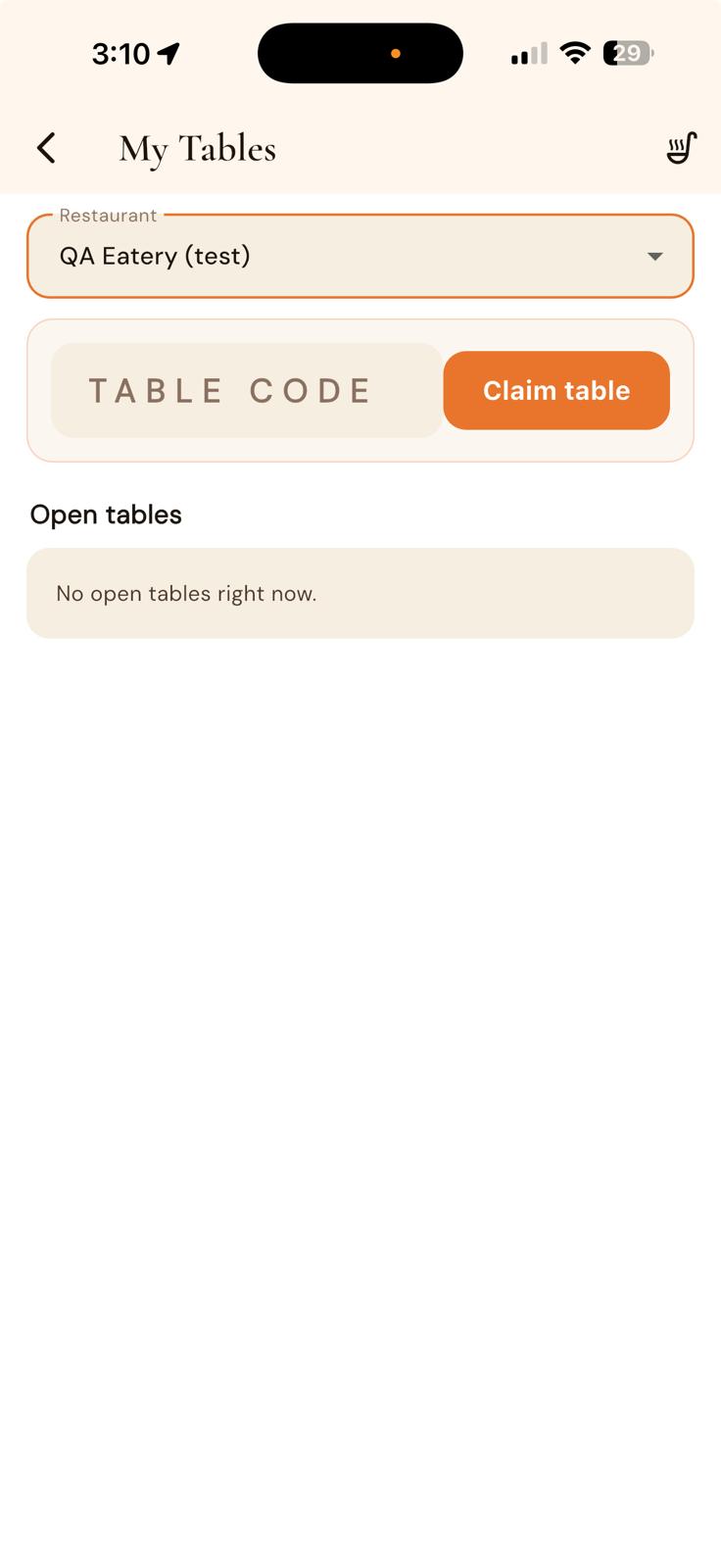
Open Table QR codes, set how many tables you have, and print or share the QR sheet (one code per table).
Turn on tips and Call waiter if you want them.
Add waiters/staff by phone number; they get a Waiter dashboard showing open tabs, ready items and service calls.
Guests scan, order to a running tab, and pay at the end by Mobile Money, card or cash.
9FINDR POS: counter & kitchen
The Kitchen Display: one live queue for every order
FINDR's Restaurant POS isn't just tables: it's a full point of sale for your counter, free for every business, so walk-in sales, dine-in and app orders all live in one system.
Order pad: staff ring up walk-in sales in seconds and settle by cash, Mobile Money or card. Voiding an item needs a manager PIN.
Cash-drawer shifts: staff open a shift with a float, take payments through the day, and close with a count; any difference is flagged to you.
Z-report: at close of day, get the full summary of sales, payment methods and cash movements for the shift.
Receipts: print customer receipts on a thermal printer, or share them from the phone.
Works offline: the internet dropping doesn't stop the POS. Orders queue on the device and sync when you're back online.
Kitchen mode: the Orders screen turns into a dark, big-type ticket board for the kitchen, fed by the POS, dine-in tables and app orders, so the kitchen works one queue and nothing is forgotten (see Take & fulfil orders).
10Ingredients & food costs
Know what every plate actually costs you. Track the ingredients behind your menu and FINDR works out each dish's food cost, so your prices protect your margin.
Add your ingredients: list what your kitchen buys (rice, oil, chicken, tomatoes) with the price you pay and the unit you buy in.
Build recipes: link ingredients and quantities to each menu item to record what goes into a dish.
See your food cost: FINDR shows what each dish costs to make next to what you sell it for, so you spot the dishes that quietly lose you money.
11Appointments & stays
Appointments: in the Bookings tab, add your services (name, duration, price) and turn bookings on. Confirm or decline requests as they arrive.
Hotels & guesthouses: manage room Reservations by date: confirm bookings, check guests in and out, and see guest details and totals. Add walk-in and phone reservations right from the Reservations desk (cash at the desk) so occupancy reflects every booking. Open Occupancy for a 14-day grid of how full each room type is, and block rooms for maintenance from the same screen. Stays check out automatically on the departure date if staff forget. Set a cancellation policy (Flexible, Moderate or Strict) that guests see before they book; when a guest cancels a prepaid stay in time, FINDR refunds them automatically under that policy (wallet payers instantly to their FINDR Wallet, MoMo and card the way they paid). During a stay, guests can order room service and call the front desk from their booking, and front-desk calls arrive in a log you acknowledge. Set seasonal, per-date room rates from the FINDR Business web dashboard, and track occupancy, ADR, RevPAR and revenue in the Stays report.
12List cars & property
FINDR Garage: cars for sale or hire
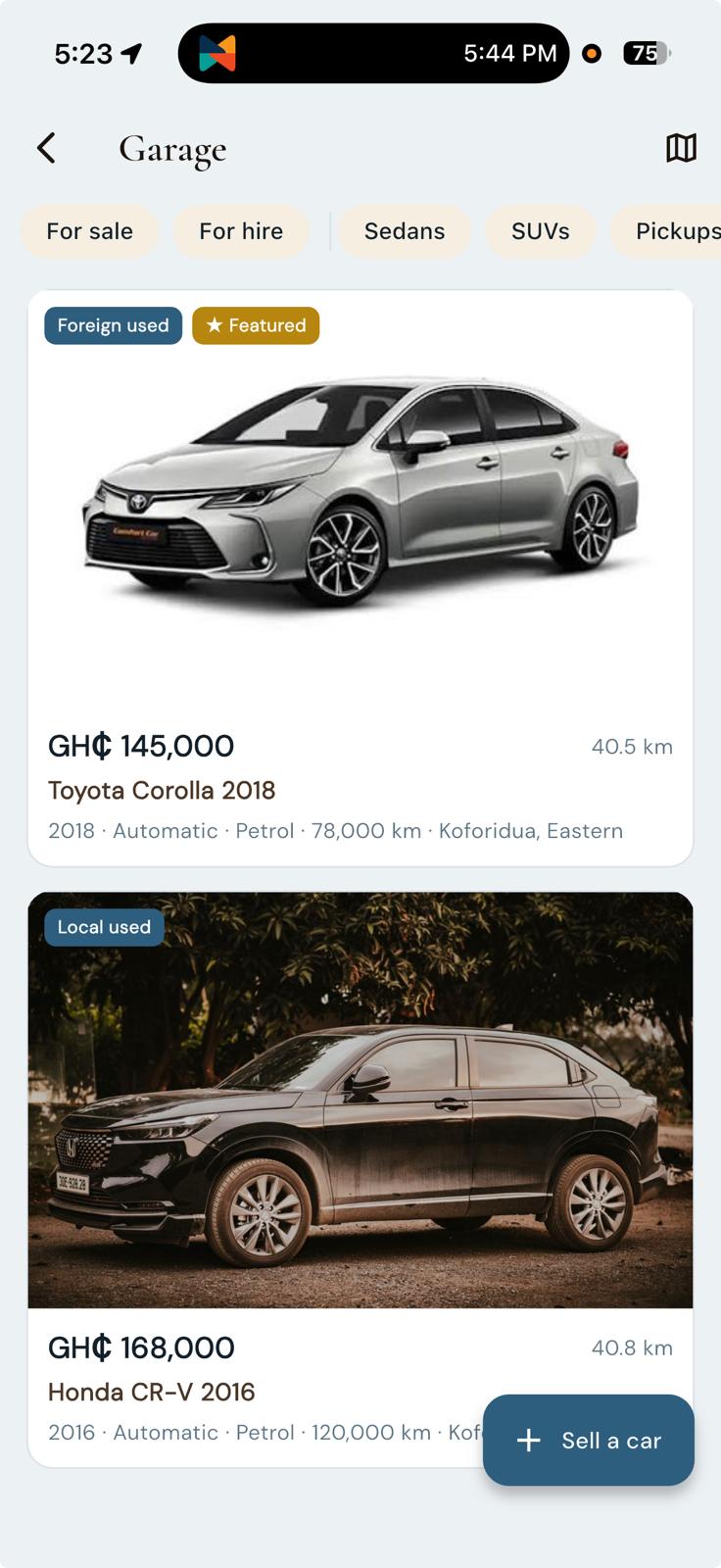
Anyone can sell a car (Garage) or list a property (Real Estate).
Tap Sell a car or List property and fill in the details, pictures and (optionally) a video. For a car, choose its Condition: the listing cannot be saved without it.
Choose Free or Featured; featured listings are published and boosted (the fee is shown before you pay).
Tap Write with AI for help with the description, then submit (pay for featured by Mobile Money or card).
Manage incoming test-drive or viewing requests from the listing's requests screen: Confirm, Decline or mark Completed.
13Landlords: manage rental properties
Run your rental property from anywhere, even outside Ghana. Keep residents, staff and maintenance in one place, and bring in a skilled worker when something needs fixing.
Add your property
Open Property from Home and tap Manage my properties at the top. Or, if you run a business on FINDR, tap Properties on the Owner Portal's Overview tab.
Tap Add property and fill in the name (e.g. “East Legon duplex”), address, city and region, plus your GhanaPost GPS code and a map pin if you like. Add pictures and private notes, then save.
Renting out units? Under Units, tap Add unit (e.g. “Apartment 2”) so each resident is linked to theirs.
Residents & staff
On the property's People tab, tap Invite to add a resident by phone number and pick their unit. If they don't have FINDR yet, the invite links up automatically when they sign up with that number.
Tap Add staff to add a Caretaker or Manager by phone; managers can also invite and remove residents.
Maintenance
Residents report problems from their My residence view; you and your staff can also log an issue directly, with a category (plumbing, electrical, pests…) and urgency.
Move each issue along (Acknowledge → Start work → Mark resolved) and the resident confirms it's fixed. Chat with the resident right from the issue, or tap Hire a pro to get bids from skilled workers near the property.
For your residents: they get a My residence view to report issues, follow progress and chat with you, your manager or caretaker; see the customer guide.
14Tutors & schools: post class lessons
Post lessons, videos and study materials to your class; only enrolled students can see them. Free to use, and you can charge for access if you like.
Turn Classroom on
With your school or tutoring business listed on FINDR (see section 1), open the Owner Portal's Overview tab and tap Classroom.
Flip Classroom on your page; students then see a Lessons button on your business page.
Enrol your students
Add them yourself: under Students, add each student by phone number (they need a FINDR account) and tap Add. Remove anyone at any time.
Or share a join code: under Access & price, generate your class's 6-character join code and share it; students tap Join with a code in My classes and they're in. Regenerate the code whenever you like.
Charge for access (optional): set a Price to join in GH₵ (leave it blank to stay free). Students joining with your code pay by MoMo or card right in the app and are enrolled automatically; the money goes straight to your Earnings & payouts.
Post a lesson
Tap New lesson and give it a title, a section to group it under (e.g. “Week 1”) and any notes.
Add a video: Upload video (≤100 MB), or paste a video link (e.g. YouTube) for long lectures.
Tap Attach a PDF or picture for handouts and past questions (up to 10 MB each).
Tap Post lesson. Your students get a phone notification and find it under My classes in the Learn hub (see the customer guide), grouped by section, and they can ask questions right on the lesson for you to answer.
15Schools: collect fees with FeePay
Let parents pay school fees from their phone by MoMo or card, straight to you, with the student's name on every payment. Free to enable.
Claim or create your school's listing (see section 1); thousands of schools are already in the FINDR directory, so yours is likely there to claim.
On the Owner Portal's Overview tab, tap School fees and flip Accept in-app fee payments. Parents now see a Pay school fees button on your school's page.
Add your bursars by phone number (they need a FINDR account); they see every payment live and match it to the student.
Tap Open payments dashboard for the live Fee payments list: every payment appears the moment a parent pays, with the amount, student, class, purpose and who paid.
Withdraw the money like the rest of your FINDR sales: Earnings & payouts on the Overview tab settles your balance to your account.
Parents pay from your school's page with the student's name, class and purpose attached, and part-payments are fine; see the customer guide for their steps.
Using Classroom too? When a parent adds the student's FINDR phone at payment, the student is enrolled in your class automatically once the fees are paid; lessons unlock with no extra work.
16Analytics & revenue
Analytics: see storefront views, favourites, search hits and clicks, with a short performance summary.
Event engagement: if you run events, your My Events screen shows per-event Views, Shares and Going counts, so you can see which events are catching on.
Draft an event with AI: on New event, type a line or two about your event (what it is, where, ticket types and prices) and tap Draft with AI. FINDR fills in the title, description, category, price and ticket types. It only uses prices you typed (if you give no price, or a price with pesewas, the ticket price is left empty for you to fill in) and never makes up a date, so set the date and time yourself, check the wording, then publish.
Manage events on the web: from the Events section of the FINDR Business web dashboard you can see all your events with their Views, Shares, Going and Saves, and add or edit an event yourself: title, picture, date and time, venue, city, category, ticket link and price. Upload an event picture right from your computer.
Revenue means your payout, not the sticker price: the money figures across the app (your order queue, the Payout today tile, and this Revenue screen) show the net payout you actually receive: the goods total, less the delivery fee (that goes to the rider). When the customer paid FINDR's service fee (orders and room bookings), or paid a dine-in tab in the app, you get your full price: no commission and no payment-processing fee come off. Other card and MoMo sales arrive less FINDR's commission and payment-processing fee. Before an order settles it shows as an estimate ("Est. payout"); once we have paid it, it reads "Your payout" and matches Earnings & payouts exactly. Cash sales show the full amount (FINDR takes nothing on cash). Tap a card to drill into the orders behind the numbers.
Hotels and restaurants get the full price: a guest who prepays a room booking pays FINDR's service fee on top, and you receive the full room price. A dine-in tab paid in the app pays you the full tab. The same is true when you withdraw your balance yourself from Earnings & payouts: money from these sales comes out with no commission and no payment-processing fee.
17Staff time clock & timesheets
Stop paying for ghost hours. Staff clock in and out from their own FINDR app, your shop's location confirms they're really at work, and approved hours flow straight into payroll. Included with your business account.
Clock in at the shop: staff tap Clock in when they arrive and Clock out when they leave. A clock-in away from your shop is flagged for you to review, never blocked, so poor GPS can't lock anyone out.
Review timesheets: you and your managers see everyone's hours and can approve or correct each entry: in the app, or at business.findrgh.com from your computer.
Payroll, pre-filled: approved hours automatically fill Ghana payroll (SSNIT + PAYE) for your hourly and daily staff. No retyping at month's end.
18Theft & Shrinkage Guard
Dishonest staff and stock walking out the back door cost Ghanaian businesses real money. The guard watches your POS and your shelves, and tells you the moment something looks wrong. Included with your business account.
Instant alerts: a push alert lands on your phone the moment staff void, discount or refund beyond the limits you set, or the cash drawer comes up short.
Manager PIN: voids, discounts and refunds all need a manager's PIN before they go through.
Guided stock counts: count the shelf and FINDR compares it to what the system says you should have, with the shrinkage valued in GH₵.
Staff accountability report: voids, discounts, refunds and cash variance per staff member, so you know exactly who to talk to.
Nightly watch: every night FINDR scans for suspicious patterns (repeated voids of the same item, cash drawers that keep coming up short, late-night voids) and flags them straight to your phone.
Truthful inventory: voided orders automatically return their stock, so your counts stay honest.
You set the limits. Choose your own void, discount, refund and cash-shortage thresholds; the guard alerts on anything beyond them.
19FINDR Business IQ: your AI business adviser
A free business adviser that knows your shop: it reads your real FINDR numbers, so the advice fits you instead of being generic tips.
On the Work tab's Business dashboard, tap the orange FINDR Business IQ card, “Your free business adviser: ask anything”.
Ask anything about running your business (pricing, getting customers, keeping records, registering, tax) or tap a starter topic like How should I price?, Get more customers, Ghana tax basics or Manage my stock.
Business IQ answers from your shop's own numbers (this week's sales and trend, recent orders, your top seller, and catalogue gaps like missing pictures or sold-out items), and its replies can include shortcuts that jump you straight to the right screen.
On-demand, not in your way: Business IQ only speaks when you open it and ask; it never interrupts you with alerts.
20Messages & notifications
Reply to customers from Customer Messages.
FINDR alerts you to new orders, bookings and requests, even when the app is closed, and the bell in the portal keeps your in-app notifications.
21Get officially registered
Trading without a business certificate? FINDR can handle your official registration with the Registrar General's Department (RGD) for you, so you get properly registered without spending days in queues.
Request it in the app: from your business on FINDR, ask for the business registration service and provide your details once.
We do the running around: the FINDR team processes the registration with the RGD on your behalf and keeps you updated in the app.
You get the certificate: your business becomes officially registered, which also unlocks things a certificate makes easier, from bank accounts to supplier contracts.
This is a paid service; the fee is shown before you pay.
22Restock from wholesale
Running low? Order packs straight from a FINDR wholesaler and your stock goes up by itself when they arrive. Any wholesaler can register to sell to shops on FINDR.
For shops: restock from wholesale
Find it: in the FINDR app, go to Work → Open business dashboard → Business portal → Store, then tap Restock from wholesale above your products. On your computer, sign in at business.findrgh.com and open Products (or Inventory), then Restock from wholesale.
See what is low: items at or below their reorder level show under Running low.
Match once: link each product to a wholesaler's pack one time, for example a crate of 24.
Pick how many: FINDR suggests how many packs to order. You can order up to 99 packs per product in one order.
Pickup or delivery: choose I will pick up or Wholesaler delivers. FINDR riders are not used for restock orders. On a Wholesaler delivers order, the wholesaler may send your packs on a truck hired through FINDR Haul; you then see the truck and your drop-off code on the order (see Hire a truck).
Order and pay: slide to order, then pay by MoMo or card. If the wholesaler has given your shop pay on delivery or credit, you can choose Pay later instead and pay in the app when the order is handed over, or by the due date for credit.
Cancelling: a paid restock order cannot be cancelled from the app. Tap Get help, or email support@findrgh.com.
Fees: no delivery fee. The restock summary shows the items, the service fee and the total before you pay. Once one wholesaler's order reaches GH₵ 300, its service fee is GH₵ 20 plus 1.95% payment processing, rounded up to the whole cedi (a GH₵ 300 order pays GH₵ 26, a GH₵ 1,000 order pays GH₵ 40). Below GH₵ 300 it is the usual small fee (about 7%). Each wholesaler's order is counted on its own. If a wholesaler gives you credit and you pay after the due date, they may add a one-time late fee. It shows on your restock orders, and you tap Pay to pay it in the app.
Stock updates itself: when the wholesaler completes the order, your stock goes up and the cost price is set for each item.
Refunds: if an order is refunded after it was delivered, that stock comes back off.
Restock orders: check the status of each order here. If the stock did not update, tap Update stock to try again.
For wholesalers: selling to shops
Join: any wholesaler can register. First list or claim your business on FINDR, then contact support@findrgh.com. FINDR sets your business up as a wholesaler and verifies it. Your packs show to shops once you are verified.
Set up your packs: give each product a pack size, a minimum number of packs per order, and turn on Offer to shops.
Shops only: your wholesale listings are not shown to shoppers.
Private prices: your packs and prices are private: only your own team and authorised FINDR staff can see them. Shops see them through Restock, and only when the shop's team member has inventory access and Restock is switched on for that shop.
Payment terms: open Shop terms above your products and pick a shop that has ordered from you. Choose Pay when ordering, Pay on delivery or Credit. For credit, set a credit limit and the days to pay, and if you want, a late fee for overdue orders: a flat GH₵ amount or a percentage, never more than 10% of the order. FINDR takes no commission on late fees. Tap Save terms. You can waive an unpaid late fee from the shop's Statement.
Orders: restock orders arrive in your normal order inbox as pickup orders. The note tells you whether to deliver or wait for the shop to collect. Like any pickup order, the payout for a paid restock order is created when you accept it.
Fulfil, then complete: hand over or deliver the packs, then mark the order complete. A pay-on-delivery order can only be completed after the shop pays in the app.
No truck of your own? Once a Wholesaler delivers order is Ready, tap Hire a truck on it (see Hire a truck).
No FINDR commission for now on wholesale orders. The usual MoMo and card processing fees still apply. We will tell you in advance before any commission is introduced.
23Give customers bonus points
Customers already earn FINDR Points when they pay you by Mobile Money, card or FINDR Wallet, and FINDR pays for those. Bonus points let you give your customers extra points on top, so they have a reason to come back to your shop. You choose the bonus, and your business pays for it.
Turn it on (owners only)
In the FINDR app, open your business from the Work tab and, on its Overview, tap Bonus points.
Tap Set up bonus points. Pick a bonus from 1% to 10% and a monthly limit (GH₵50 to GH₵1,000).
Read the terms, tick I have read and agree to these terms, and slide to save.
Customers then see "Earn 6% at this shop" on your storefront and at checkout (FINDR's 1% plus your 5%, for example).
What it costs you
100 points are worth GH₵1. The bonus is worked out on your own share of the sale, not on the delivery fee or FINDR's service fee.
A 5% bonus on a GH₵100 order of food or goods is 500 points, worth GH₵5. On a delivery order with GH₵20 of food and a GH₵25 delivery fee, a 10% bonus is 200 points, worth GH₵2. One sale never earns more than 4,000 bonus points (GH₵40).
How you pay: FINDR takes the bonus value off your payout for that same sale. FINDR commission and fees are still worked out on the full sale. The deposit in Earnings & payouts says how much of it was bonus points, and Est. payout on your orders already takes the bonus off.
Only on paid sales: cash sales, FINDR credit, test orders and orders from you or your staff never earn a bonus.
Refunds give it back: if an order is cancelled or refunded, the customer loses the bonus points and their value comes back to your balance, automatically.
Monthly limit: when your customers have earned your monthly limit, the bonus stops until the 1st of next month.
Pause any time
Tap Pause bonus points and confirm; it stops at once. Points your customers already earned stay theirs, and their cost stays in your payouts. Slide to turn it back on whenever you like. The Bonus points screen shows what it cost this month and since you started, customers rewarded, how much of your monthly limit is used, and every bonus charge (refunded ones show as returned).
Unused points expire. Bonus points follow the FINDR Points rules. Points a customer does not use expire after 12 months with no earning or spending. When bonus points expire, their value is not returned to you; FINDR keeps it.
Who can give a bonus: a claimed business with a payout account, paid out by FINDR. If your sales are paid to you directly by Paystack, contact FINDR support to switch first.
24Hire a truck (FINDR Haul)
Need goods moved? Post a delivery job with the price you will pay, and approved truck, pickup and goods tricycle drivers accept your price or bid. FINDR holds your payment until the goods arrive. FINDR Haul is open in selected towns. Available in: Koforidua, more towns coming.
Who can hire a truck
Any business that is claimed and verified on FINDR. The owner or a manager posts the job in the FINDR app: open the Work tab and tap Hire a truck. My hauls, next to it, lists every job you have posted. Wholesalers can also hire a truck straight from a restock order (see below).
On your computer: it works on the FINDR Business web app too. Sign in at business.findrgh.com and open Hauls in the menu to hire a truck and follow every job.
Field agents and helpers: a FINDR field agent or a worker helping your business can post a haul and choose a driver. Only the business owner or a manager can pay for a haul, cancel a paid haul, or accept the haul terms for the business. When an agent or helper posts a haul, the owner gets its notifications too, including the one to pay.
The FINDR Haul terms
Read the FINDR Haul Terms for Businesses before you post. When the app shows them, tap Read the terms, tick the box to agree, and tap I agree, continue. Each owner or manager agrees once for each business, and again if the terms change.
Post a job
Where: pin the pickup and the drop-off, and add a landmark if it helps the driver. Add the receiver's name and phone.
Load: describe it (for example, 40 packs of drinks and 10 bags of sugar), about how heavy it is in kg, and how many packs or bags. Pick the smallest vehicle that fits: Aboboyaa OK, Cargo tricycle OK, Pickup, 3-ton truck (Kia), 7-ton truck, 15-ton truck or Flatbed trailer. Choose a body if you need one: open, box (covered), refrigerated or tipper. If you want, add the Value of the goods (see below).
Price and time: set the pickup window and the price you will pay, in whole cedis, up to GH₵20,000. Leave Drivers may bid a different price on to get bids, or turn it off so drivers can only accept your price. Turn on Book the first driver who accepts my price and FINDR chooses that driver for you straight away (you still pay before they set off).
Tap Post job. Drivers near the pickup are told.
Goods tricycles (aboboyaa and motor king)
For small loads, pick Aboboyaa OK (about 500 kg) or Cargo tricycle OK (a motor king or similar, about 800 kg) as the smallest vehicle that fits. Drivers of that vehicle or anything bigger can then take the job. An aboboyaa only sees jobs marked Aboboyaa OK.
A tricycle only takes trips of up to 15 km from the pickup to the drop-off, measured in a straight line. On a longer trip, only pickups and trucks see your job.
If you give the weight, only vehicles that can carry it see your job.
Tricycle drivers need the same valid documents as truck drivers: a number plate, roadworthy, commercial insurance and a DVLA sticker. A driver with a missing or expired document cannot take jobs.
Declared value: what the driver is responsible for
The Value of the goods is optional, up to GH₵100,000. Drivers see it before they accept or bid.
If the goods are lost or damaged in the driver's care, the driver is responsible up to that value. If you leave it blank or enter 0, it counts as not declared and the limit is the agreed haul price.
The limit does not protect a driver, or their helper, who steals the goods or loses them on purpose.
FINDR does not insure your goods. Insure anything worth more yourself. Bids show whether a driver has goods-in-transit insurance.
You cannot change the value after you post. To change it, cancel and post again.
Goods you cannot send
Do not post a haul for anything illegal, stolen or fake; weapons, ammunition, explosives or fireworks; fuel or gas in bulk, gas cylinders or chemicals; cash, gold or jewellery; people; or live animals of any kind. The full list is in the FINDR Haul Terms for Businesses.
The driver refuses the load at pickup: your haul shows Load refused by the driver with the driver's note, and FINDR's Haul desk reviews it. If FINDR confirms the goods are prohibited, it counts as you cancelling: you get the haul fee back, but not the payment processing fee. If FINDR finds the goods are allowed, the same driver is asked to collect them.
Prohibited goods found after pickup: contact FINDR support (after delivery, use Report a problem). FINDR's Haul desk decides what happens.
Bids and choosing a driver
Bids show each driver's first name, vehicle class, rating, hauls done, their price (or Accepted your price), when they can be at the pickup and any note. Bids also show whether the driver has goods-in-transit insurance.
No bids yet? Under Trucks available near you, tap Invite to bid.
Tap Award on the bid you want, then Choose. The other bids are turned down.
FINDR approves every haul driver and checks every vehicle's roadworthy, commercial insurance and DVLA sticker, goods tricycles included. Haul drivers are at least 25 and give their driving licence number and date of birth.
Pay to book the truck
The pay screen shows three lines: Haul fee + Payment processing = Total. Payment processing covers the MoMo or card charge. For example: Haul fee GH₵500 + Payment processing GH₵10 = Total GH₵510 Nothing is added afterwards.
Slide to pay, then pay by MoMo or card. Pay by the time shown, or your choice ends and the haul opens again. FINDR holds the money and releases it to the driver 24 hours after delivery, unless a problem is reported. FINDR credit, FINDR Points and promo codes can't be used for a haul, and hauls don't earn FINDR Points.
The pickup code and tracking
Once you have paid, the haul shows the driver, the plate, a Call button and your pickup code. Read the code to the driver only once the goods are on the truck. If someone else hands over the goods, open the haul in My hauls and pass the code to them.
On a business job, the haul also shows the drop-off code. The receiver gets it in the FINDR app, or by text message if they do not use FINDR. If they do not have it, pass it to them. They read it to the driver only when the goods are off the truck and checked.
Tap Track the truck to follow it on the map (on the web: See where the truck is).
After delivery: Report a problem
The driver is paid after a 24-hour hold. If the load is short or damaged, open the haul and tap Report a problem before the time shown, say what is wrong, and tap Send to FINDR. The driver is not paid while FINDR looks into it. FINDR contacts you and aims to decide within 48 hours of getting what it needs. FINDR's Haul desk lets you and the driver know what it decided. Any refund goes to the person who paid.
Cancelling and fees
Whoever cancels a paid haul pays the payment processing fee.
What happens
Your money
You cancel before you pay
Nothing to pay
You cancel after paying, before pickup
Haul fee back
FINDR confirms a load the driver refused is prohibited
Haul fee back
The driver cancels, or does not pick up within your pickup window
Full refund
FINDR cancels the haul
Full refund
When you cancel after paying and before pickup, the payment processing fee is not refunded. If the driver cancels or does not show up, you get the full total back and the fee is charged to the driver. FINDR refunds the person who paid, back to the MoMo number or card that paid, and aims to do it within 7 working days. Once the goods are picked up, the haul cannot be cancelled in the app. Contact FINDR support while the truck is on the way; after delivery, use Report a problem during the hold.
Wholesalers: hire a truck for a restock
A Wholesaler delivers restock order shows Hire a truck once it is Ready, in the app's Orders, or in the Order queue at business.findrgh.com. Only the owner or a manager sees it. The pickup is your shop pin, the drop-off is the buying shop, and the pack count is filled in for you.
Post, award, pay and hand over with the pickup code as above. Tap View truck haul on the order to open the haul again.
After the truck delivers, tap Delivered on the restock as usual, in the app's Orders, or in the Order queue at business.findrgh.com. The haul does not complete the order, and a shop on pay on delivery must pay first.
Receiving shops: a truck is bringing your restock
Open the restock order in the app or at business.findrgh.com. It shows Truck booked, then On the way, with the truck, the driver, a Call button and See where the truck is.
Every owner and manager of your shop sees the drop-off code on the order. Read it to the driver only when all the goods are off the truck and checked.
If anything is short or damaged, tap Report a problem on the same card before the time shown, when the driver is paid. When FINDR decides, every owner and manager of your shop gets a notification in the FINDR app.
You never see the haul price. The wholesaler pays for the truck.
Open now in selected towns. Available in: Koforidua, more towns coming. FINDR Haul covers goods tricycles (trips of up to 15 km), pickups and trucks. Driving a truck or tricycle yourself? See the Haul driver guide.
25Fees at a glance
What
Notes
Cost
List or claim a business
Create new or claim existing
Free
Customer service fee
For most businesses (everything except fuel stations, schools, wholesale suppliers and Makola market traders), customers pay a small service fee (about 7%) shown as its own line at checkout; your prices stay your real shop prices and you receive the full price you set
Paid by the customer
Agent managed service
A FINDR agent sets up and runs your storefront for you; end it any time
From GH₵50/month*
Classroom lessons
Free to use; set a price to join if you charge for access
If you delete your FINDR account (Profile, Settings, Delete account): your business listing stays on FINDR but is no longer linked to you, and someone else can claim it later. Its menu or products, pictures and opening hours stay; your staff's access is removed and it stops taking orders and bookings. Your payout details and business verification are kept privately by FINDR for legal and accounting reasons and are not visible to anyone who claims the shop later. Withdraw any money in your FINDR wallet first, and pay any restock order you owe a wholesaler. If the business still has orders, bookings, event tickets, money or a payout in progress, the app tells you, and our support team finishes the deletion for you. See findrgh.com/account-deletion.
If a customer deletes their FINDR account: their past orders, stays, dine-in tabs, appointments, bills and tenancy records show Deleted customer instead of their name, and on deliveries the receiver's name, phone and drop-off point are removed. The phone number, address, map location and notes on them are removed too (on a school bill the pupil's own name, class and phone stay). Amounts, items, dates and payments stay, so your sales and payouts do not change. Your chats with them stay, with the messages, under Deleted customer. An order or delivery that was still open keeps its details so you can finish it; an old open tab or bill does not, so close it from your records.
Want to earn with FINDR too? You or someone on your team can drive, deliver, or sign up other shops in your town as a field agent. See how at findrgh.com/join.